If you have done playing the addons, texture packs and want to remove the integrated custom packs from Minecraft on iOS devices, this article is specifically for iOS users providing the uninstallation process as complete on how to uninstall Addons, Texture Packs and Maps for iOS. Besides playing with such addons, maps and texture packs, you can remove them from your Minecraft game on iOS to clear up some space and to prevent the crashing.
Add-ons Uninstallation As .Mcpacks Files
In this section, we have provided an ultimate step by step guide on how to uninstall addons, texture packs and maps from Minecraft on iOS. The straightforward procedure of removing these packs available in the text for the Minecraft APK player. So if you have anything from these three packs on your Minecraft iOS, let’s remove them quickly to prevent the slowdown of your iOS device. This process is about uninstalling texture packs but the procedure of maps and addons is the same as this one with some changes that we have discussed too in this section.
Step 1: Connect with Windows
In the first step, you have to connect your iOS device to Windows using a data connection cable.
Step 2: Download iFunbox
In the second step, you have to re-download the iFunbox software on your computer like you have downloaded for installation in the other article. Basically it is a tool management software for both iOS and Windows. You can download it from here.().
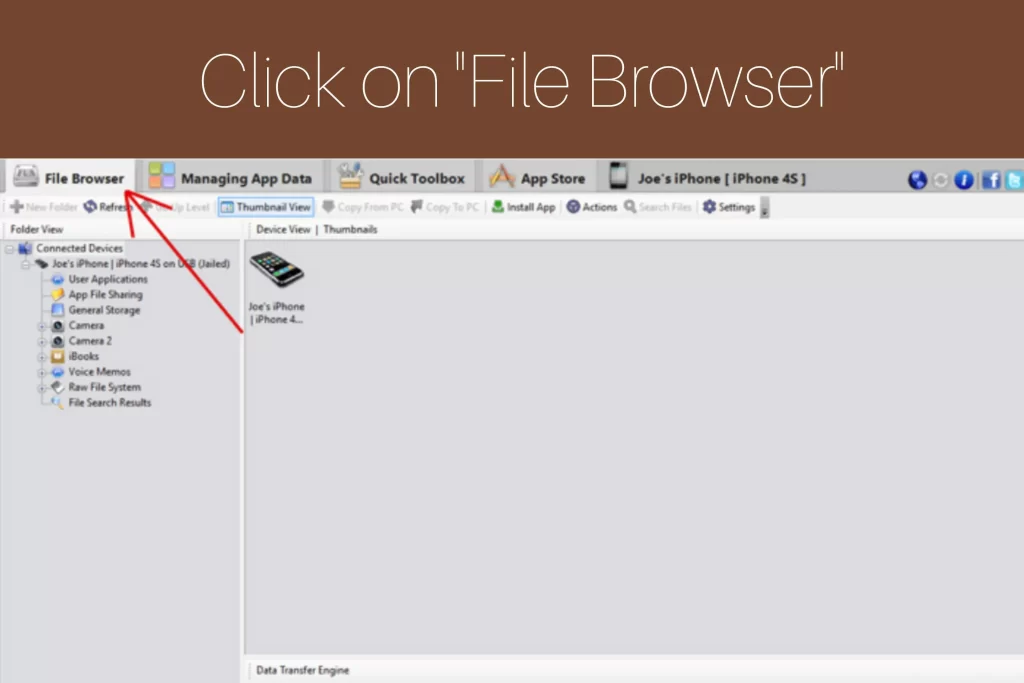
Step 3: Click on File Browser
In the third step, open your iFunbox tool and look for a file browser. Once found, click on “File Browser” to open it. Now, you will see your connected iOS device. You have to double click on it.
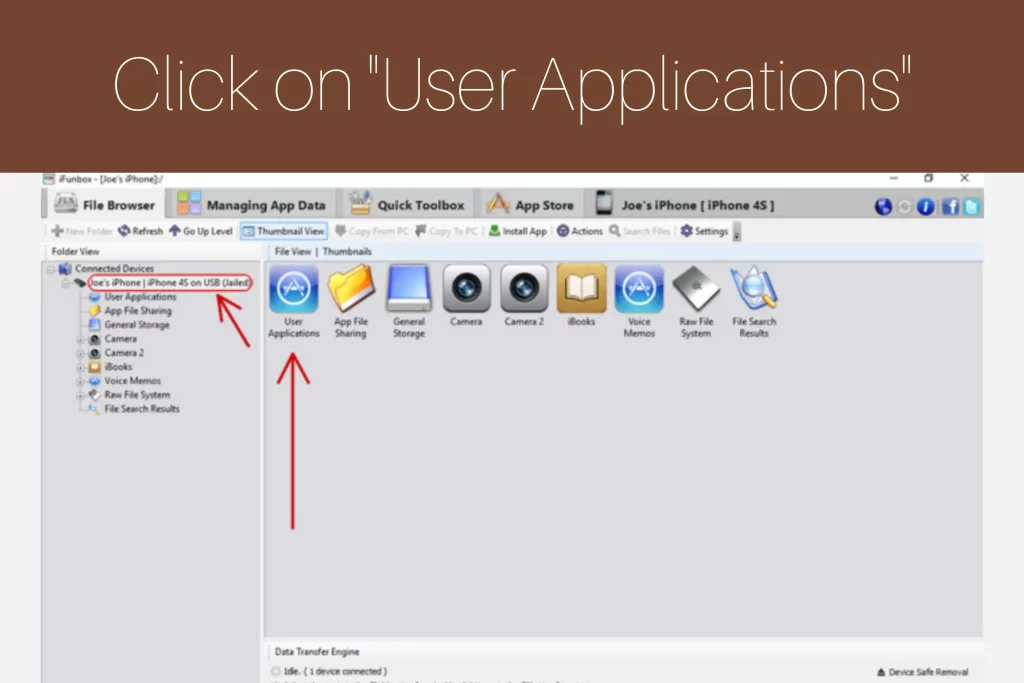
Step 4: Click on User Applications
In the fourth step, click on the “User Applications” option.
Step 5: Click on Minecraft PE
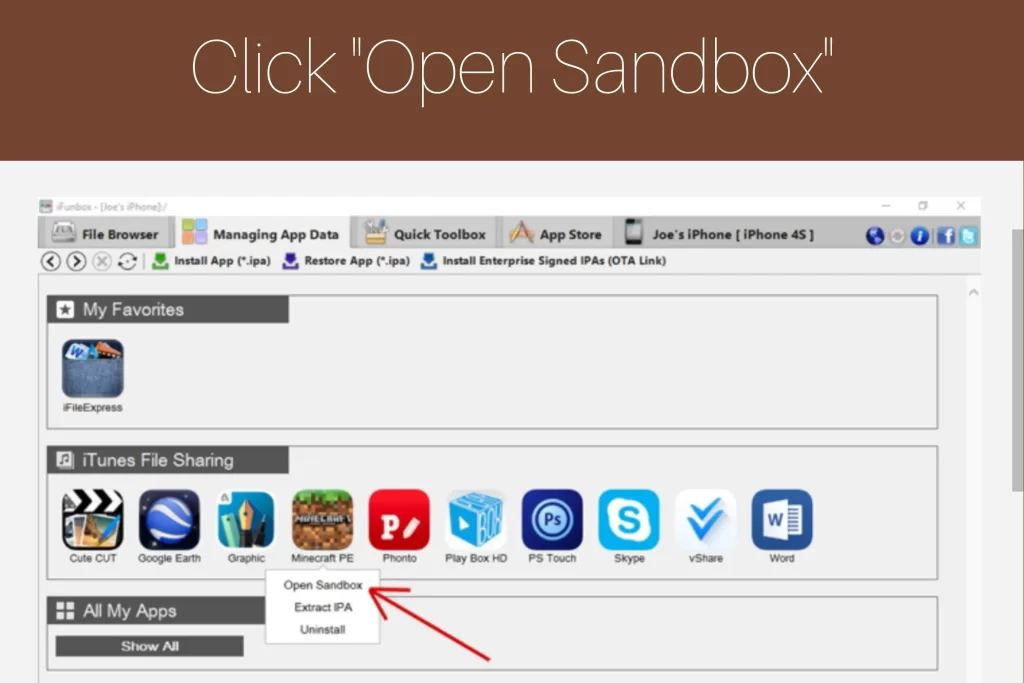
After that, click on the “Minecraft PE icon” and from the drop down menu select “Open Sandbox”.
Step 6: Open com.mojang Folder
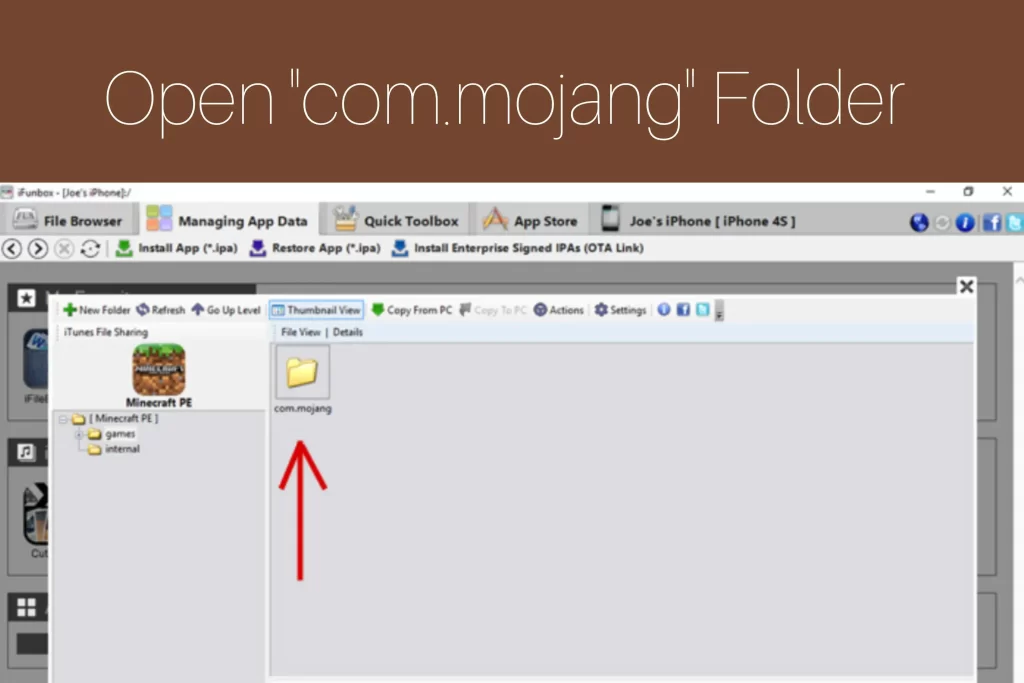
In the sixth step, open the “Games” folder and select the com.mojang folder.
Step 7: Start Deleting
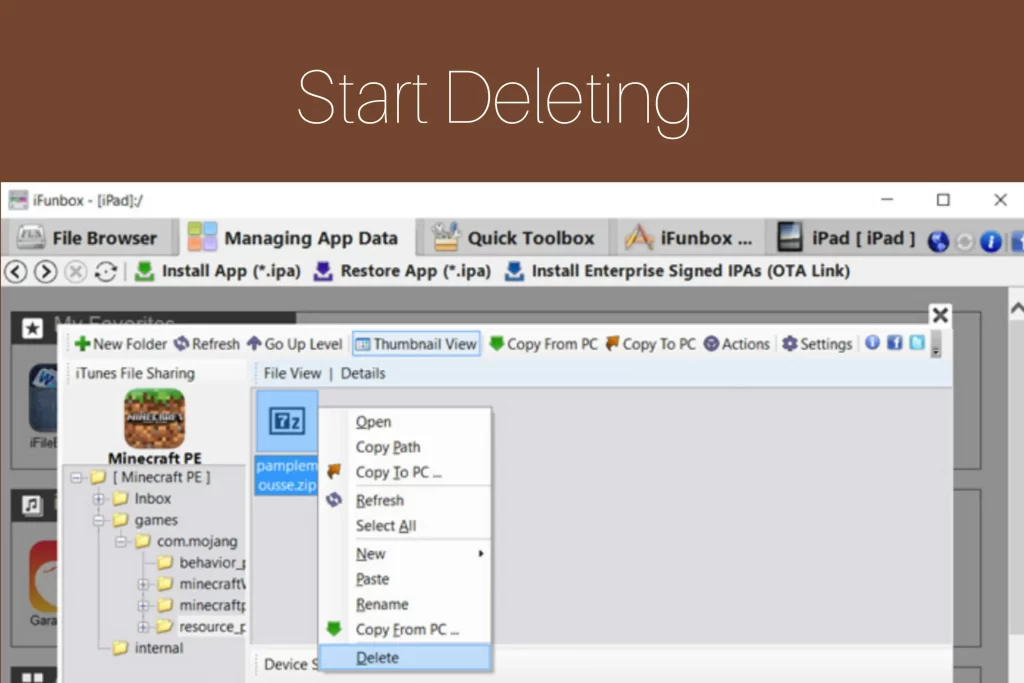
In this step, you will reach the apps files for Minecraft. Your addon, maps and texture packs files are here as behavior_packs: Addons, Minecraft Worlds: Maps and resource_packs: Texture Packs.
- For removing addons, remove files from behavior_packs and resource_packs folder.
- For removing texture packs, remove files from resource_packs folder.
- For removing maps, remove files from Minecraft Worlds.
Select your files, right click on it to delete.
Conclusion
Without any further crashing issues on your iOS devices, you can quickly delete any of your installation files of texture packs, maps and addons following the guiding steps given in this article. Also check out our info about Best Minecraft Island Seeds For Java and Bedrock.
FAQs
Can I permanently delete maps, texture packs and add-ons from Minecraft on iOS?
Yes, as following the above procedure, your maps, texture packs and addons will be deleted permanently.
Where can I download iFunbox for further procedure?
You can download iFunbox software through this article as we have provided you with the download link.
Is it necessary to connect iOS with Windows for deletion?
Yes, it is necessary to connect iOS with Windows for deletion.